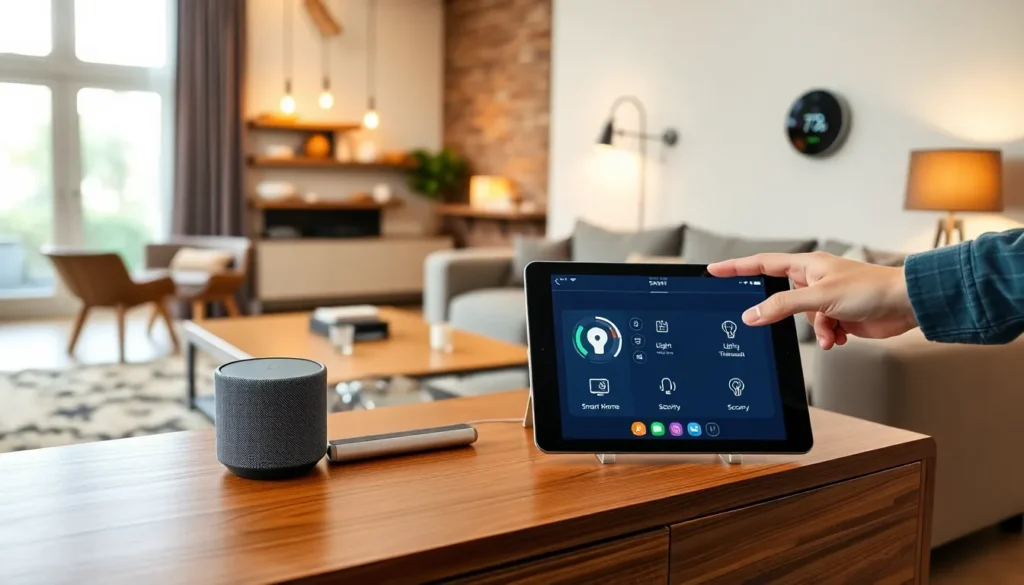
Table of Contents
ToggleLearning how to set up smart home devices doesn’t require a tech degree. Millions of homeowners now control their lights, thermostats, and security systems with voice commands or smartphone taps. The market has grown substantially, smart home device adoption reached 69% of U.S. households in 2024. Yet many people still hesitate at the setup process.
This guide breaks down smart home device installation into clear, manageable steps. Readers will learn how to choose the right ecosystem, connect devices properly, and fix common problems. Whether someone wants to start with a single smart bulb or build a fully automated home, these fundamentals apply across all major platforms and device types.
Key Takeaways
- Setting up smart home devices starts with choosing one primary ecosystem—Amazon Alexa, Google Home, or Apple HomeKit—to ensure seamless device communication.
- Most smart home devices only work on 2.4GHz Wi-Fi networks, so verify your router settings before beginning setup.
- Give each device a clear, descriptive name like ‘Living Room Lamp’ to make voice commands and app control more intuitive.
- Create automations and scenes to make multiple smart home devices work together, such as triggering lights at sunset or adjusting the thermostat when you leave home.
- Look for Matter-compatible devices when shopping, as they work across all major platforms and future-proof your smart home investment.
- If devices disconnect frequently, consider adding a mesh Wi-Fi system or a dedicated hub to improve network stability and scalability.
Understanding Smart Home Technology Basics
Smart home devices are electronic products that connect to the internet and communicate with each other. They receive commands through Wi-Fi, Bluetooth, Zigbee, or Z-Wave protocols. Users control these devices through smartphone apps, voice assistants, or automated schedules.
The most common smart home devices include:
- Smart speakers and displays (Amazon Echo, Google Nest Hub)
- Smart lighting (Philips Hue, LIFX bulbs)
- Smart thermostats (Nest, Ecobee)
- Smart locks and doorbells (Ring, August)
- Smart plugs and outlets
- Security cameras and sensors
Each device needs three things to work: power, an internet connection, and a controlling app or hub. Some smart home devices connect directly to Wi-Fi routers. Others require a dedicated hub that acts as a translator between devices and the home network.
Understanding how to set up smart home devices starts with knowing the difference between Wi-Fi-based and hub-based systems. Wi-Fi devices are simpler to install but can strain network bandwidth. Hub-based systems like Zigbee or Z-Wave use less power and handle more devices without slowing down the network.
Choosing the Right Smart Home Ecosystem
An ecosystem determines which devices work together and how users interact with them. The three major ecosystems are Amazon Alexa, Google Home, and Apple HomeKit. Each has strengths and limitations.
Amazon Alexa offers the widest device compatibility. It works with over 100,000 smart home products. Alexa excels at voice commands and integrates well with Amazon services. Budget-conscious buyers often start here.
Google Home provides strong integration with Android phones and Google services. Its voice recognition handles multiple users well. Google Assistant also performs better at answering general questions and understanding natural language.
Apple HomeKit delivers the tightest security and privacy controls. It works best for households already invested in Apple products. HomeKit has fewer compatible devices but maintains strict certification standards.
Before purchasing any smart home devices, buyers should pick one primary ecosystem. Mixing ecosystems creates frustration, devices may not communicate with each other, and users end up managing multiple apps.
Consider these factors when choosing:
- Which smartphone platform does the household use?
- What voice assistant feels most natural?
- Which devices are must-haves, and do they support the preferred ecosystem?
- What’s the budget for smart home devices?
Some devices support multiple ecosystems. The Matter standard, launched in late 2022, aims to make devices work across all major platforms. When shopping, look for Matter compatibility as a future-proofing measure.
Step-by-Step Device Setup Process
Setting up smart home devices follows a consistent pattern across most products. Here’s how to complete the process smoothly.
Prepare the Home Network
A stable Wi-Fi connection makes or breaks smart home performance. Before adding devices, check router placement and signal strength in target areas. Most smart home devices only work on 2.4GHz networks, not 5GHz. Verify the router broadcasts a 2.4GHz signal.
Write down the Wi-Fi network name and password. Every device will need these credentials during setup.
Download the Manufacturer’s App
Each brand uses its own app for initial configuration. Download it before unboxing the device. Create an account if required, this step often takes longer than expected.
Follow the Physical Installation
Plug in or install the device according to manufacturer instructions. Smart bulbs screw into existing sockets. Smart plugs go between outlets and appliances. Thermostats and locks require more involved installation but include detailed guides.
Enter Pairing Mode
Most devices enter pairing mode automatically when first powered on. Others require holding a button for several seconds. A blinking light usually indicates the device is ready to connect.
Complete In-App Setup
Open the app and follow the prompts. The app will search for nearby devices, ask for Wi-Fi credentials, and guide users through naming and configuring the device. Give each device a clear, descriptive name like “Living Room Lamp” rather than “Smart Bulb 1.”
After initial setup, add the device to the chosen voice assistant platform for hands-free control.
Connecting and Integrating Multiple Devices
Individual smart home devices become more powerful when they work together. Integration allows users to create scenes, automations, and routines that control multiple devices simultaneously.
Creating Scenes and Groups
Group related devices for easier control. Put all living room lights in one group so a single command adjusts them together. Create scenes like “Movie Night” that dims lights, closes smart blinds, and turns on the TV.
Building Automations
Automations trigger actions based on conditions. Examples include:
- Lights turn on at sunset
- Thermostat adjusts when everyone leaves home
- Front door lock engages at 10 PM
- Coffee maker starts when the morning alarm goes off
Most ecosystem apps include automation builders. Start simple with time-based triggers before adding sensor-based conditions.
Using a Central Hub
As device counts grow, a central hub simplifies management. Smart displays like the Amazon Echo Show or Google Nest Hub let users see and control everything from one screen. Dedicated hubs like Samsung SmartThings or Hubitat connect devices across different protocols.
When learning how to set up smart home devices for a larger installation, consider hub-based systems from the start. They scale better and offer more advanced automation options.
Voice Assistant Integration
Link third-party device apps to the primary voice assistant. In the Alexa app, go to Skills & Games and enable manufacturer skills. In Google Home, use the “Works with Google” section. This step unlocks voice control for devices outside the native ecosystem.
Troubleshooting Common Setup Issues
Even straightforward smart home device setups hit snags. These solutions fix the most frequent problems.
Device won’t enter pairing mode
Reset the device to factory settings. Check the manual for the exact reset procedure, it varies by product. Ensure the device has fresh batteries or adequate power.
App can’t find the device
Move closer to the Wi-Fi router during setup. Disable VPNs on the smartphone. Check that Bluetooth and location services are enabled, many apps require these permissions to discover devices.
Device connects but goes offline repeatedly
Weak Wi-Fi signal causes most disconnection issues. Add a mesh Wi-Fi system or move the router closer to problem devices. Some users add dedicated IoT routers to handle smart home traffic.
Voice assistant doesn’t recognize the device
Re-link the device skill or service in the voice assistant app. Ask the assistant to “discover devices” after setup. Rename devices using simple, distinct words that the assistant won’t confuse.
Devices from different brands won’t work together
Check ecosystem compatibility before purchasing. Use IFTTT (If This Then That) or similar services to bridge devices that don’t natively integrate. Matter-certified devices communicate across ecosystems automatically.
Automations don’t trigger correctly
Verify time zones and location settings in all apps. Test each device individually to confirm it responds to commands. Rebuild automations step by step, testing after each addition.